
Troubleshooting Slow PC Performance
Computer Solutions
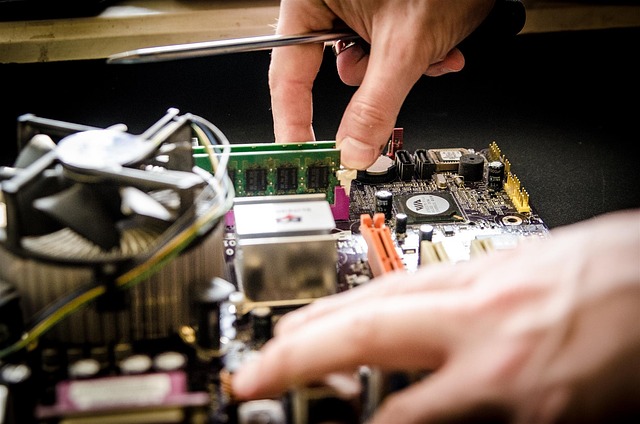 It's no secret that computers can slow down over time. Whether you're running a new, high-end gaming rig or an aging budget laptop, its performance can suffer due to a number of factors. If your PC is experiencing slow performance, there are some troubleshooting steps you can take to diagnose and fix the issue.
- Check your system for malware: Malware such as viruses, trojans, and rootkits can slow down your PC by stealing precious resources. Make sure you have up-to-date anti-virus, anti-spyware, and anti-malware protection installed and set to run regular scans.
- Check for overheating: Overheating can be a common cause of sluggishness. Make sure your PC is free of dust and dirt, and that all fans and vents are unblocked. If the problem persists, consider investing in a cooling pad or fan to keep your PC running at its best.
- Check for disk fragmentation: Over time, files on your hard drive can become fragmented, which can cause slow performance. You can defragment your hard drive using the Windows Disk Defragmenter tool.
- Check for low disk space: If your hard drive is low on available disk space, your PC can slow down. Make sure you delete unnecessary files, uninstall unused programs, and move large files to an external drive or cloud storage to free up space.
- Check for outdated drivers: Outdated drivers can cause slow performance. Make sure you keep all your drivers up-to-date by using a driver updater tool.
- Check for system errors: System errors can cause slow performance. Use the Windows Check Disk tool to check for errors and repair them if necessary.
